
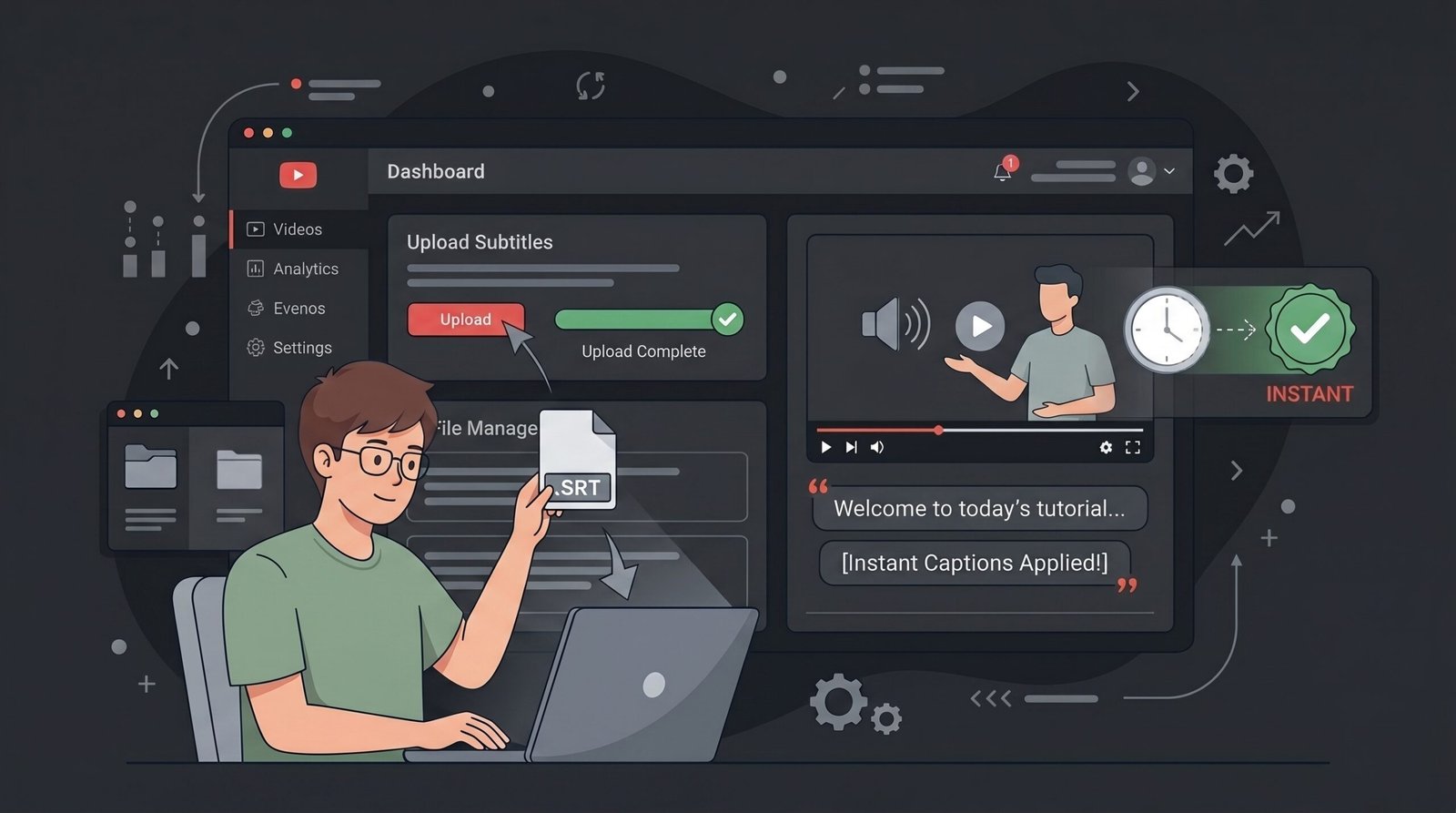
YouTube generates automatic captions for most videos, but they often take time to appear and aren’t always accurate. This is especially noticeable when you mention proper names, niche tools, technical terms, or words in other languages.
In this tutorial, I’ll show you how to generate a subtitle file using a free AI tool and manually upload it to YouTube in less than five minutes.
While there is no public evidence that manual subtitles directly improve a video’s ranking, they do offer several real advantages and could help YouTube better understand your content from the moment it is published.
¿Por qué molestarse en subir subtítulos manualmente?
Los subtítulos tienen beneficios confirmados:
- Mejoran la accesibilidad para personas con dificultades auditivas.
- Permiten ver el video sin activar el sonido.
- Hacen que las traducciones automáticas sean más precisas.
- Evitan errores comunes en los subtítulos generados automáticamente por YouTube.
También existe un posible beneficio adicional relacionado con el algoritmo.
What We Know About Subtitles and YouTube SEO
✅ YouTube analyzes the audio in your videos.
✅ YouTube uses titles, descriptions, and other metadata to understand what a video is about.
✅ YouTube can use transcripts and captions to better interpret video content.
✅ Manually uploaded captions are usually more accurate than YouTube’s auto-generated ones.
A Reasonable Hypothesis
Auto-generated captions on YouTube can take anywhere from a few minutes to several hours to appear.
If you upload an SRT file as soon as you publish your video, YouTube may have access to a clean, complete transcript immediately instead of waiting to generate its own.
This could be particularly useful if:
- You talk about highly specific or technical topics.
- You mention tools, brands, or concepts that speech recognition systems commonly misinterpret.
- Your channel is still new and YouTube is learning what your content is about.
For example, imagine your video title is:
The Best AI Extension for Chrome
But throughout the video, you repeatedly mention terms such as:
- Claude Code
- MCP
- Gemini CLI
- Manifest V3
If YouTube’s automatic transcription makes mistakes or takes hours to become available, the platform may initially have less context about the exact topic of your video.
A well-made SRT file removes that uncertainty.
Will uploading subtitles double your views? Probably not.
But it’s a free optimization that takes only a few minutes and comes with virtually no downside.
Other Benefits of Uploading Your Own Captions
- Even if captions don’t directly impact rankings, they still provide several advantages:
- Fewer transcription errors compared to YouTube’s built-in captions.
- Better accessibility for viewers who are deaf or hard of hearing.
- Improved viewing experience for people watching without sound.
- More accurate automatic translations into other languages.
Step 1: Generate a Transcript With AI
For this tutorial, I’m using TurboScribe, which offers a free plan that’s sufficient for many creators. This plan includes 3 transcriptions up to 30 min daily.
Create your account on TurboScribe. Go to Control panel and click on Transcribe Files.
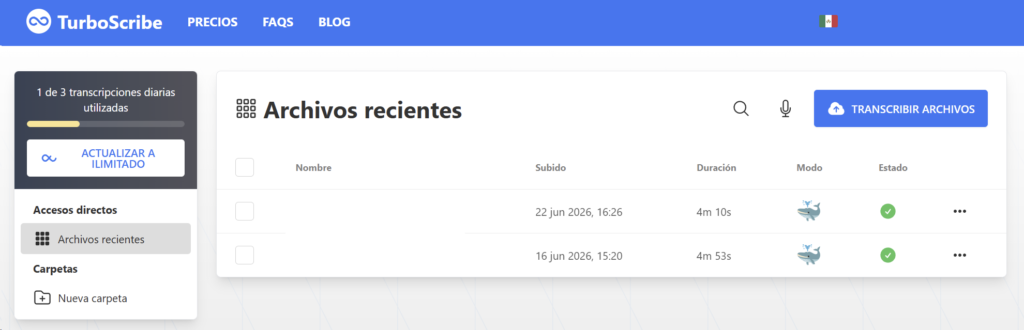
Select the file you want to transcribe (it accepts various formats — even whatsapp downloaded audio files!).
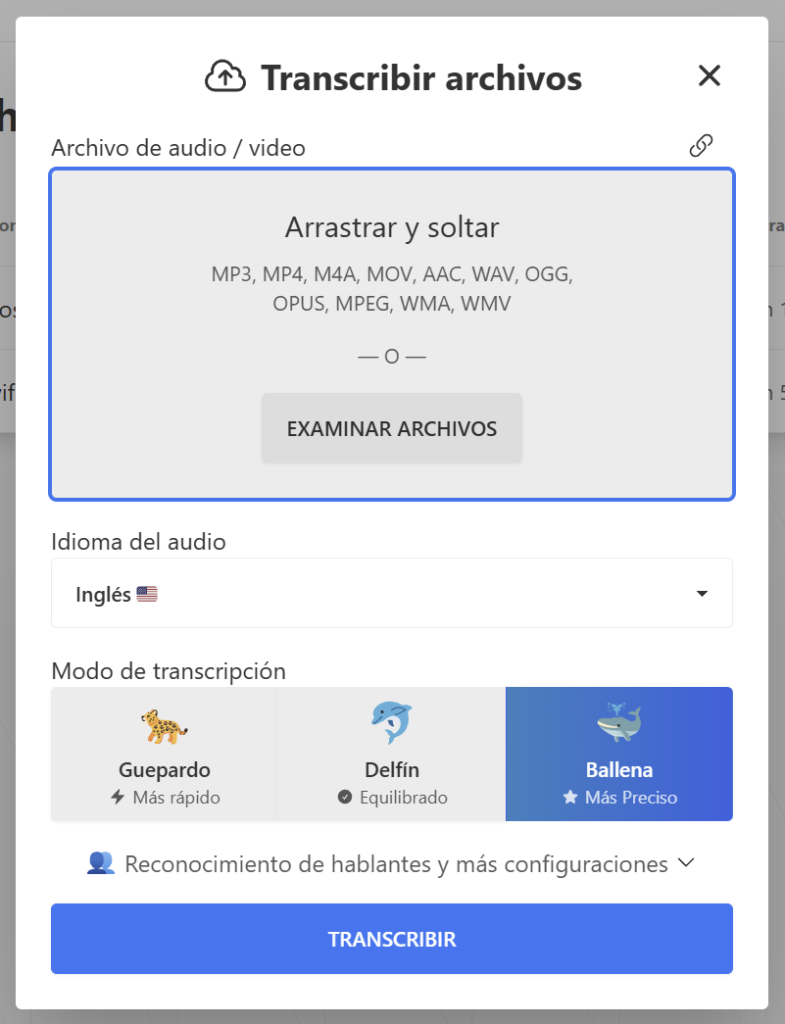
Make sure you are uploading your final narration file. And select the right language for the output.
In Transcription mode I always pick Whale, it gives excelents results. Then wait a few moments until processing is done.
Step 2: Export an SRT File
Once the transcription is generated, click on its name to open it, then click on Download SRT button on the right panel.
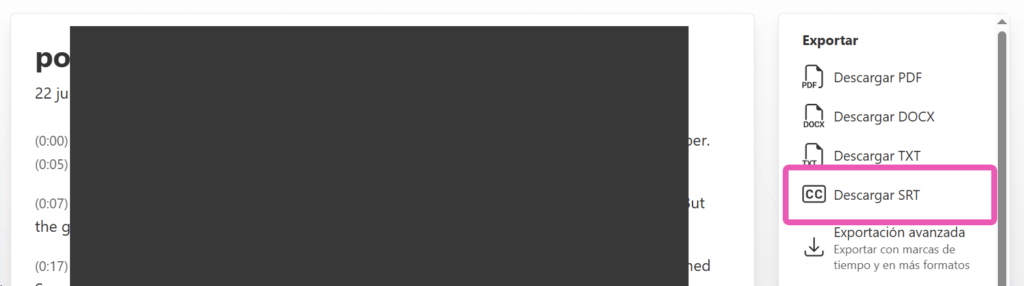
If your video is on landscape format you can download the transcription as it appears on the modal.
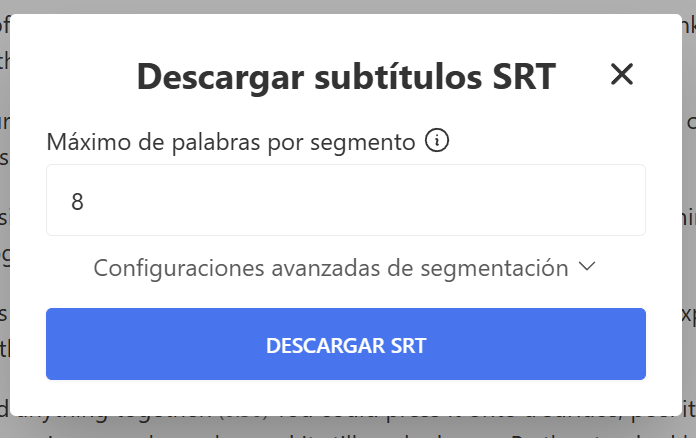
But if you want this SRT for a vertical reel or short, it’s worth to make some adjustments before downloading, like changing the max words per sement. Also clicking on Advanced settings you can select the max characters per segment. Also make sure to have Sentence-Aware Segmentation enabled.
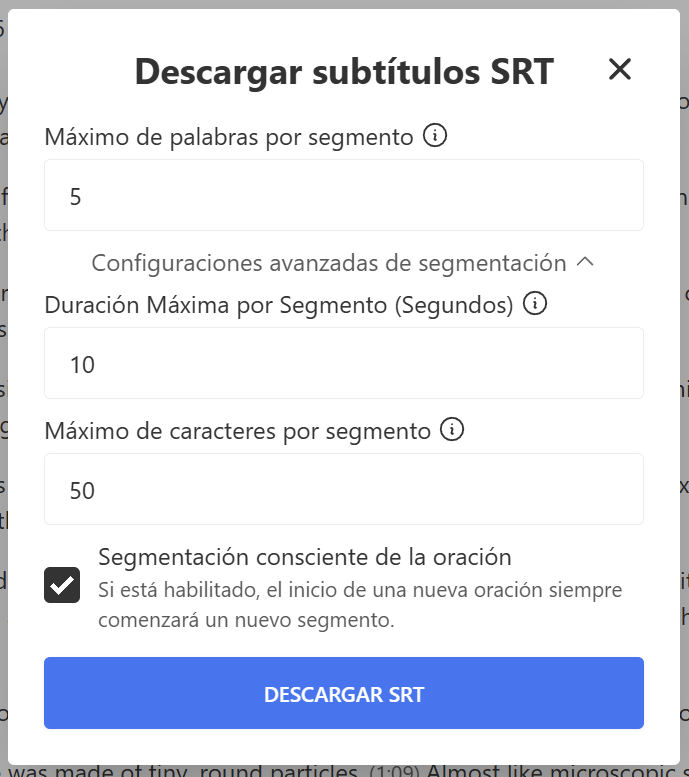
You can now download the final SRT file.
The SRT format contains both the transcript and the timestamps that specify exactly when each line should appear on screen.
PRO TIP
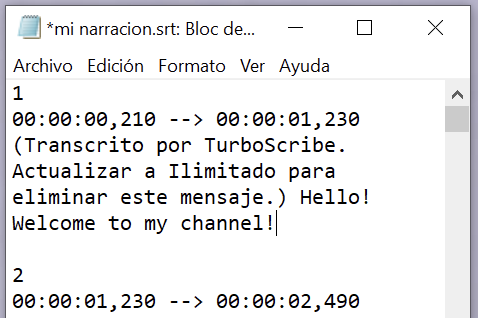
You can open the .srt file in a text editor such as Notepad and make changes if needed. I recommend removing the line that says (Transcribed by TurboScribe…).
You can also correct any transcription mistakes, but be very careful not to modify the timestamps, as changing them may cause the subtitles to become unsynchronized with the video.
Paso 3: Upload the captions to YouTube
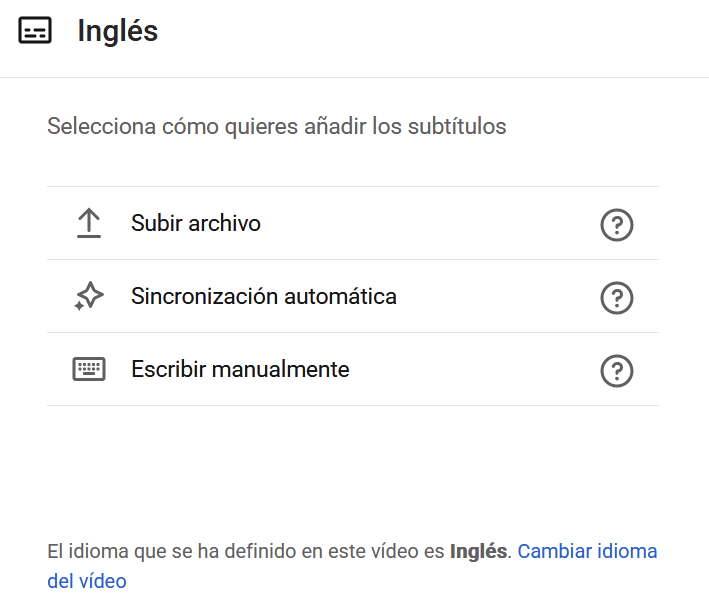
When uploading your video, go to the Video elements step and click the Add button under Subtitles.
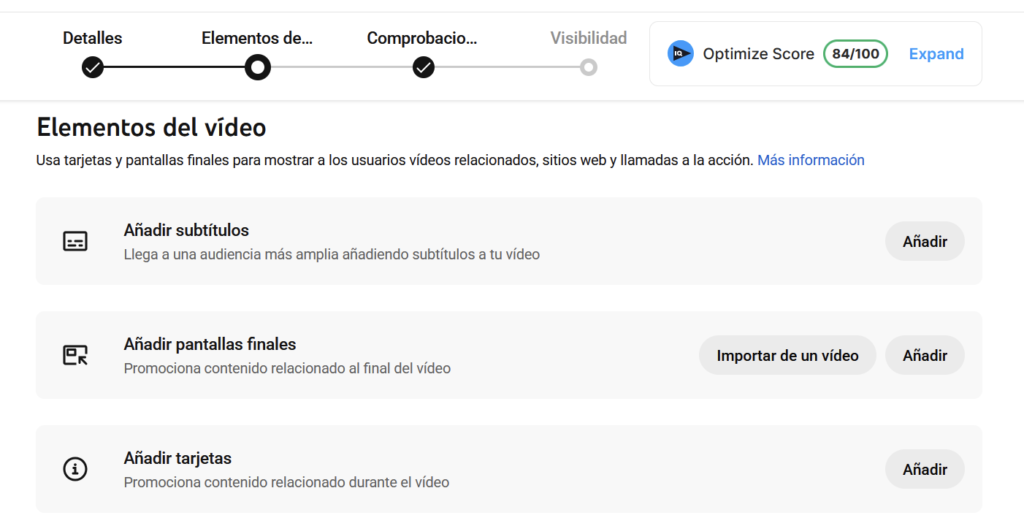
Then click on Upload file.
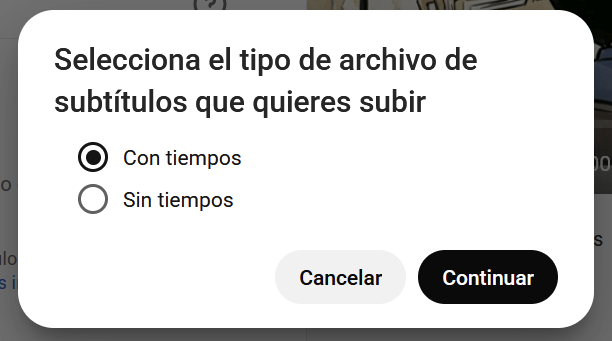
Select With timing, then click Continue.
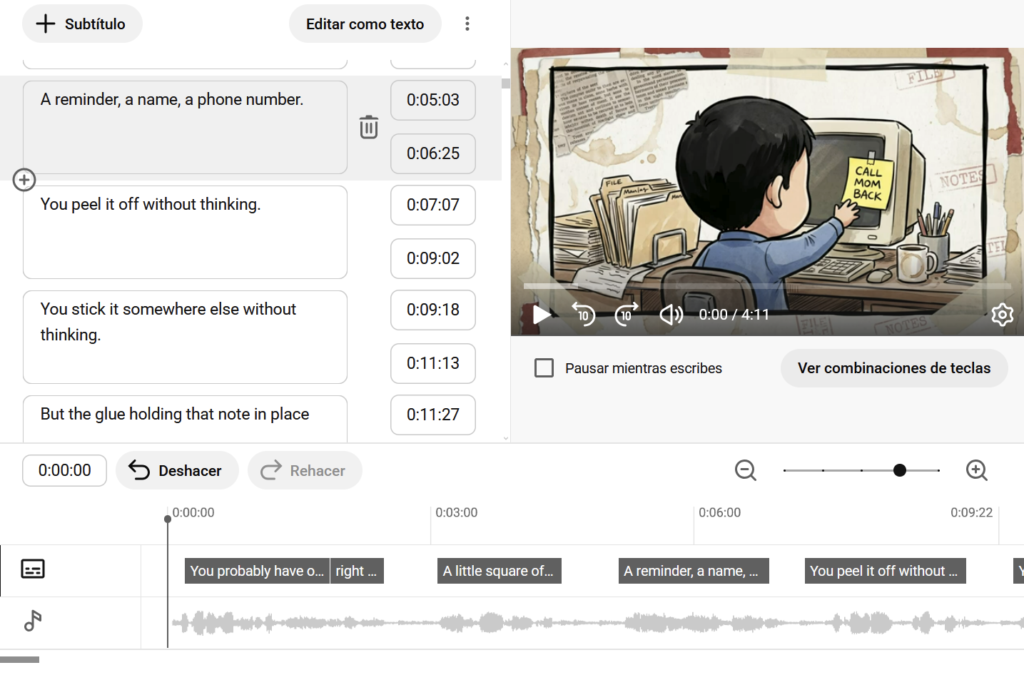
YouTube will process the file, and your captions should be available almost immediately, perfectly synchronized with your video.
Is It Worth Doing?
I think so.
There is no proof that manually uploaded subtitles are a ranking factor, but they undeniably improve accessibility and may give YouTube a clearer understanding of your content from day one.
If you create videos about AI, programming, niche software, or highly technical subjects, uploading an SRT file is one of those small optimizations that costs almost nothing and could be worth incorporating into your workflow.
At worst, you’ve spent two extra minutes.
At best, you’ve made your videos easier to understand for both viewers and YouTube itself.
Did you find this tutorial useful? If you’d like to support me in creating more tutorials like this, you can buy me a coffee 👇